How to Extend Your Smartphone’s Battery Life
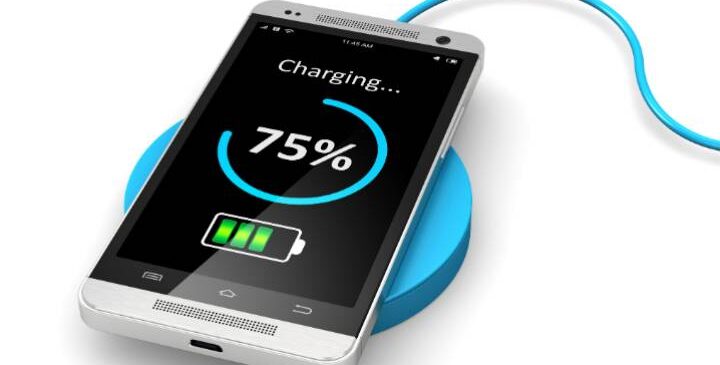
Smartphones have become essential tools in our daily lives. However, one of the most common complaints is battery life. Many users find their phones dying at inconvenient times. This guide looks at practical ways to extend your smartphone’s battery life. You can enjoy longer usage without constantly searching for a charger.
Adjust Screen Brightness and Timeout Settings
One of the biggest drains on your smartphone’s battery is the screen. The brighter the screen, the more power it uses. Lowering the brightness can significantly save battery life. Most smartphones have an automatic brightness feature that adjusts based on surrounding light. However, you can often save even more by setting it manually to a lower level.
Manual Brightness Adjustment
To adjust brightness manually, go to your phone’s settings. Look for “Display” or “Brightness.” Slide the bar down to a comfortable level. You can also enable “Night Mode” or “Blue Light Filter.” These features change the color temperature of your screen, which may not only reduce strain on your eyes but also slightly conserve battery.
Screen Timeout Settings
Another way to save battery is by adjusting your screen timeout settings. This setting determines how long your phone’s display stays on when not in use. If you have it set to 5 minutes, consider reducing it to 30 seconds or 1 minute. To change this setting, go to “Display” in your settings and look for “Sleep” or “Screen Timeout.” A shorter time will ensure your screen turns off quickly when idle.
Manage Background Apps and Notifications
Many apps run in the background, consuming power without you knowing it. Regularly managing these apps can help extend your smartphone’s battery life. Start by reviewing which apps are using battery power in your settings.
Review Background App Usage
Access your phone’s settings and navigate to “Battery” or “Battery Usage.” Here, you’ll see a list of apps and their energy consumption. Consider closing or uninstalling apps that consume too much power without adding value to your daily usage. Some apps may have options to limit background activity in their settings.
Limit Notifications
Notifications not only distract but also drain battery life. Each notification lights up your screen, vibrates the phone, and consumes data if it requires an update. Go through your notifications settings and turn off alerts for less important apps. This step will help reduce interruptions and save battery life.
Update Your Apps and Operating System
Keeping your operating system and apps updated is vital for battery performance. Developers often release updates that optimize battery usage. Ignoring these updates can lead to unnecessary power consumption.
Check for Software Updates
To check for updates, go to “Settings,” then “About Phone,” and look for “Software Updates.” If an update is available, download and install it. Regular updates will improve performance and could fix bugs that affect battery life.
Update Your Apps Regularly
Similarly, keep your apps updated through the app store on your device. Open the app store, go to “Updates,” and select “Update All” if needed. Newer versions of apps often run smoother and use resources more efficiently than older versions.
Use Battery Saver Mode
Your smartphone likely has a built-in battery saver mode designed to extend battery life when it runs low. When activated, this feature limits background processes, reduces performance, and makes other adjustments that conserve energy.
Activate Battery Saver Mode
You can usually find this option in “Settings” under “Battery.” Once activated, you’ll notice immediate changes in performance—notifications may be limited, animations reduced, and syncing paused until charging resumes.
Customize Battery Saver Settings
Some smartphones allow you to customize how battery saver mode works. Explore these settings if available; you might choose which features to limit while maintaining essential functions like calls and texts.
Avoid Extreme Temperatures
Your smartphone’s battery can be sensitive to temperature changes. Exposure to extreme heat or cold can damage the battery over time, leading to reduced efficiency and lifespan.
Avoid Heat Sources
Keep your phone away from direct sunlight or hot surfaces like car dashboards during summer days. High temperatures can cause batteries to drain faster than usual or even permanently damage them.
Store at Moderate Temperatures
If you’re not using your phone for an extended period, store it in a cool place with moderate temperatures. Avoid freezing conditions as well; cold weather can lead to temporary shutdowns or slow performance due to low power supply.
Reduce Connectivity Features When Not Needed
Your smartphone connects through various features like Wi-Fi, Bluetooth, GPS, and mobile data. These features can drain power when left on unnecessarily.
Turn Off Wi-Fi and Mobile Data When Not Needed
If you’re not using the internet, turn off Wi-Fi or mobile data from quick settings or the main settings menu. Keeping these connections off will prevent them from searching for networks constantly.
Disable Bluetooth and GPS When Not In Use
If you’re not using Bluetooth devices or location services (like GPS), turn them off as well. Again, access quick settings for easy toggling of these features without diving deep into menus.
Consider Battery Replacement or Upgrade Options
If you’ve tried multiple methods but still struggle with battery life, it may be time for a replacement or upgrade depending on how old your device is.
Batteries Deteriorate Over Time
Batteries lose capacity over time due to regular charging cycles. If you notice that even with careful use, your phone still doesn’t last long enough throughout the day, consider getting a new battery if possible. Some smartphones allow easy replacement while others may require professional help.
This Might Be Time for an Upgrade
If replacing isn’t an option or if your smartphone is several years old, consider upgrading altogether. Newer models often include enhanced battery technology that lasts longer than older versions.
Frequently Asked Questions
How often should I charge my smartphone?
You should charge your smartphone when it reaches around 20-30% remaining battery life. Avoid letting it drop to 0%, as this can harm the battery’s lifespan over time.
Does using a dark wallpaper really save battery?
Using a dark wallpaper can help save some battery life on OLED screens because they use less power displaying black pixels compared to lighter colors.
Can I leave my phone plugged in overnight?
While many smartphones have systems that prevent overcharging, it’s best not to make it a habit as prolonged charging can lead to heat build-up and potential long-term damage.
What is the best way to store my smartphone?
If you’re storing your phone for an extended period, charge it to around 50% before turning it off and keep it in a cool dry place away from direct sunlight or extreme temperatures.
Will closing background apps save my battery?
Closing background apps may help save some power but modern smartphones manage background processes efficiently enough that this method might not yield significant results unless an app is consuming too much energy.